Finding Your Way Through Your Notes
Information without navigation is just noise. TreeMk gives you multiple ways to move through your notes—not just finding files, but discovering connections, retracing your steps, and jumping to exactly what you need. Let's explore how to navigate like a pro.
The Web of Wiki Links
Traditional note apps force you into folders and hierarchies. But your thoughts don't work that way. Ideas connect in networks, not trees. TreeMk embraces this with wiki-style links.
Type [[note-name]] anywhere in your text, and you've created a link. Ctrl+Click it, and TreeMk opens that note. The file might be in the same folder, in a subfolder, anywhere in your workspace—TreeMk finds it.
Click on [[quantum mechanics]] and TreeMk searches for quantum mechanics.md or quantum-mechanics.md or any variation. Found it? You're there. Doesn't exist? TreeMk offers to create it for you right now.
Link Variations
Sometimes you want the link text to differ from the filename:
The part before the pipe (|) is the filename. The part after is what displays. Clean, flexible.
Want to link to a specific section?
TreeMk opens the note and scrolls to that heading. Perfect for big documents.
Need to link to a file in a subfolder?
Discovering Connections: Backlinks
Here's where things get interesting. Every time you create a link like [[quantum mechanics]], TreeMk tracks it. Now when you open quantum-mechanics.md, look at the Backlinks tab in the left sidebar.
You'll see every note that links to this one. Every reference, every mention, every connection. You didn't have to build this map—TreeMk did it automatically as you wrote.
This is powerful. You're reading about quantum mechanics and discover that five other notes reference it. You follow one, then another, discovering threads through your knowledge base you didn't know existed. Your notes become a network, not a filing cabinet.
Navigating the File Tree
The left sidebar's Files tab shows your actual folder structure—the same one you see in your file manager. This isn't a database representation. It's the real thing.
Right-click anywhere to create new files or folders. Rename files with F2. Delete with the Delete key (TreeMk asks for confirmation—we're dealing with real files here). Refresh with F5 if something changed outside TreeMk.
Here's a neat trick: drag a file from the tree and drop it in the editor. TreeMk inserts a [[wiki-link]] to that file. Instant connection.

Quick Open: The Fastest Way
You have 50 notes. You need the one about neural networks. You could hunt through folders. Or you could press Ctrl+P.
The Quick Open dialog appears. Start typing: neur...
TreeMk instantly filters your files using fuzzy matching. Type netw and it still finds "neural-networks.md". Press Enter, and you're there. The whole operation takes a second.
This might become your favorite feature. Once you've used it, navigating with your mouse feels quaint.
Search Everything
Your notes are a second brain. But brains aren't organized by filename—they're organized by content. Press Ctrl+Shift+F to search across all your notes.
Type "quantum entanglement" and TreeMk shows you every file mentioning it, with context. Click any result to jump straight there. It's like Ctrl+F, but for your entire knowledge base.
Following the Thread: History
You're reading about quantum mechanics. You follow a link to wave functions. From there, to eigenvalues. Then matrix mechanics. Four notes deep, and you want to go back.
Press Alt+Left. You're back to eigenvalues. Alt+Left again—wave functions. TreeMk tracks every file you open, maintaining a history just like your web browser.
Look at the History tab in the left sidebar. Your entire navigation path is there, most recent at the top. Double-click any file to jump straight to it.
TreeMk remembers up to 2,048 entries, persisting across sessions. You can retrace your research from yesterday, or last week, following your own trail of breadcrumbs.
The Document Outline
Long documents need structure. When you're writing a technical guide or a research paper with dozens of sections, you need to jump around efficiently.
Look at the Outline tab in the left sidebar. It shows every heading in your current document—a live table of contents. Click any heading to jump there instantly.
As you write and reorganize, the outline updates automatically. It's a map of your document, always current, always clickable.
Tab Management
You're writing in one note while referencing three others. TreeMk handles this with tabs at the top of the editor.
- Ctrl+Tab: Next tab (like a browser)
- Ctrl+Shift+Tab: Previous tab
- Ctrl+W: Close current tab
- Ctrl+Shift+T: Reopen the tab you just closed (saved your bacon, didn't it?)
Work with as many tabs as you need. TreeMk remembers which were open when you quit, reopening them next time.
Smart Clipboard: Images Just Work
You're writing documentation and need to include a screenshot. Take the screenshot (it's in your clipboard). Go to TreeMk. Press Ctrl+V.
TreeMk saves the image to the ./images subdirectory (creating it if needed), prompts you for a filename, and inserts the Markdown syntax: 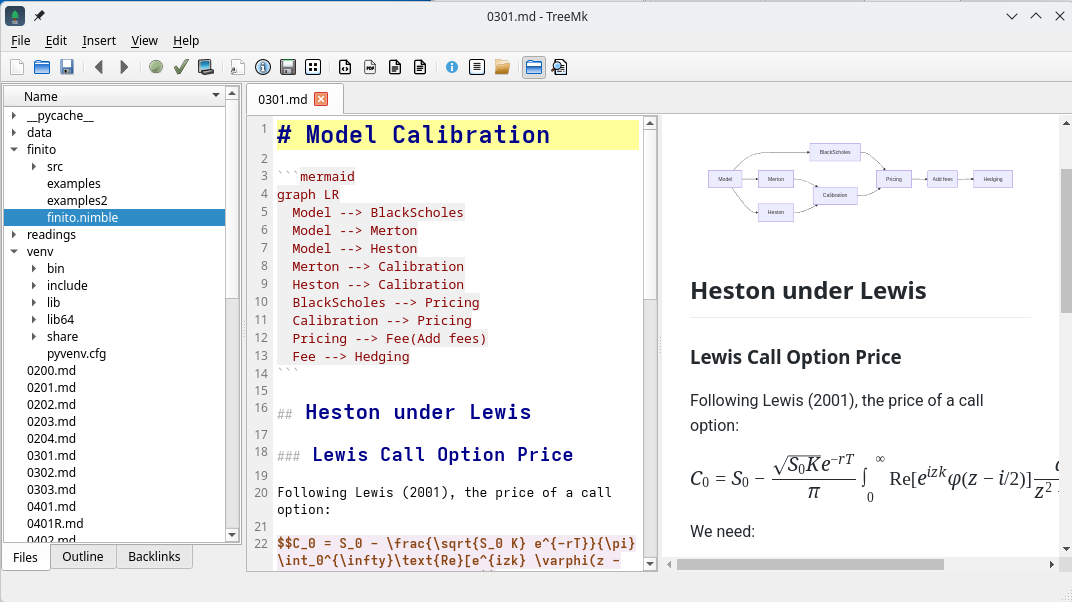. One keystroke.
This works with any image on your clipboard—screenshots, copied images from websites, diagrams from drawing tools. TreeMk handles it. All markdown files in the same directory share the same ./images folder, keeping your workspace organized.
Workspace Switching
You keep work notes in one folder, personal journal in another, and a writing project in a third. Each is a separate workspace.
Access File → Recent Folders to see workspaces you've opened recently. Click one, and TreeMk switches to it, closing tabs from the old workspace and remembering where you were.
Navigation Patterns
Here's how these features work together in practice:
Research Mode: Start with Ctrl+Shift+F to find all notes about a topic. Open several in tabs. Use Alt+Left/Right to move between them. Notice the Backlinks—discover more related notes. Use Ctrl+P to jump to specific files people mentioned.
Writing Mode: Keep reference notes open in tabs. Use Ctrl+K to create links as you write. Ctrl+V to paste screenshots. Use the Outline tab to jump between sections you're editing.
Review Mode: Open the History tab. See what you were researching yesterday. Click through your path. Notice patterns in how your ideas connect.
Where To Go Next
You've learned to navigate TreeMk's interface. Now dive deeper:
- Preview Features: See how math, diagrams, and code come alive
- Keyboard Shortcuts: Master the fastest ways to work
- Writing with TreeMk's Editor: Return to explore more editor features
Your notes are a network. Navigate them that way.
Clipboard Support
- Paste images directly into notes with Ctrl+V
- Images are auto-saved to the document folder
- Automatic filename generation with timestamps
- Markdown syntax inserted automatically
Outline Panel
Document Structure
The Outline tab shows all headings in the current document:
- Click any heading to jump to that section
- Hierarchical view of document structure
- Auto-updates as you edit
Heading Levels
TreeMk recognizes all Markdown heading levels:
# H1- Main document title## H2- Major sections### H3- Subsections- And so on...
Navigation History
Back and Forward Navigation
TreeMk tracks your navigation history, allowing you to move backward and forward through recently opened files—just like a web browser.
Using History Navigation
- Alt+Left or click the Back button: Go to previous file
- Alt+Right or click the Forward button: Go to next file
- Menu: Go → Back and Go → Forward
- Toolbar: Back and Forward buttons (arrow icons)
History Panel
The History tab in the left sidebar shows your complete navigation history:
- Most recent files appear at the top
- Per-tab history: Each tab maintains its own independent history
- Double-click any file to jump directly to it
- No duplicate entries - shows only unique files you've visited
- History persists across sessions
- Maximum of 2048 entries per tab (oldest are automatically removed)
Per-Tab History
Each editor tab has its own independent navigation history:
- When you switch tabs, the History panel shows that tab's history
- Navigate back/forward within the current tab's history
- History filters automatically remove duplicates for cleaner display
- Create different navigation contexts for different tasks
How History Works
- Each time you open a file in a tab, it's added to that tab's history
- Navigate back and forward without re-adding to history
- Opening a new file while in the middle of history clears forward entries
- No duplicate consecutive entries for cleaner history
- History panel shows unique files only (most recent occurrence)
Use Cases
- Return to Context: Go back to where you were before following a link
- Compare Notes: Quickly switch between related documents
- Retrace Steps: Review your research path through multiple documents
- Resume Work: See what you were working on in previous sessions
Backlinks
What Are Backlinks?
Backlinks show all notes that link to the current document. This powerful feature helps you discover connections in your knowledge base by revealing which documents reference the one you're currently viewing.
Using Backlinks
- Open any note
- Switch to the Backlinks tab in the left sidebar
- See all notes that reference this one with
[[wiki-links]] - Click any backlink to open that note
- Backlinks update automatically as you create or remove links
Benefits
- Discover connections between notes
- Find all references to a topic
- Navigate your knowledge graph bidirectionally
- Build a networked note system
- Track how ideas are interconnected
How Backlinks Work
When you create a wiki-link like [[note-name]] in one document, that document will appear in the Backlinks panel of the target note. This creates a two-way connection: you can navigate forward through links you create, and backward through links others create to you.
Quick Open
Fast File Access
Press Ctrl+P (menu: Go + Quick Open) to open the Quick Open dialog:
- Start typing a filename
- Fuzzy search matches parts of names
- Arrow keys to select
- Enter to open
Fuzzy Matching
Type any part of the filename:
gettmatches "getting-started.md"key shomatches "keyboard-shortcuts.md"- Works with partial matches
Search in Files
Full-Text Search
Press Ctrl+Shift+F to search across all files:
- Enter search term
- See all matches with context
- Click any result to open that file
- Search is case-insensitive by default
Search Features
- Preview matching lines
- Jump directly to matches
- Search entire workspace
- Regular expression support
Tab Navigation
Multiple Tabs
Work with multiple notes simultaneously:
Ctrl+Tab: Next tabCtrl+Shift+Tab: Previous tabCtrl+w: Close current tabCtrl+Shift+t: Reopen closed tab
These options are also available in the main menu under option Go
Tab Management
- Tabs remember their position
- Session restoration on restart
- Close tabs from other folders when switching workspaces
- Drag tabs to reorder
Opening Files in New Tabs
TreeMk intelligently manages tabs to reduce clutter while giving you control:
Default Behavior (Current Tab): - Clicking wiki-links reuses the current tab if unmodified - Opening files from the file tree reuses unmodified tabs - Following backlinks reuses the current tab - This prevents tab proliferation when exploring links
Opening in New Tab Explicitly: - Ctrl+Shift+O: Open selected file in new tab (from file tree or menu) - Ctrl+Double-click: Open file in new tab (file tree) - Ctrl+Shift+Click: Open link in new tab (on wiki-links and markdown links) - Right-click → Open in New Tab: Context menu option (file tree) - Right-click on link → Open Link in New Tab: Context menu in editor
Smart Tab Reuse: - Modified tabs are never replaced without confirmation - Empty startup tabs are reused automatically - At least one tab always remains open
This browser-like behavior keeps your workspace clean while giving you explicit control when you need multiple tabs.
Opening in New Windows
For multi-monitor workflows: - Ctrl+Shift+Double-click: Open in new window (file tree) - Right-click → Open in New Window: Context menu option
Recent Folders
Workspace Switching
Access recently opened folders:
- File → Recent Folders menu
- Quick switching between projects
- Recently used folders at the top
- Clear history option available
Tips for Efficient Navigation
- Use Wiki Links: Create a web of interconnected notes
- Leverage Backlinks: Discover unexpected connections and reverse relationships
- Navigation History: Use Back/Forward to retrace your steps through documents
- History Panel: Review and jump to recently visited files
- Quick Open: Fastest way to jump between files (Ctrl+P)
- Outline Panel: Navigate long documents quickly
- Tab Groups: Keep related notes open together
- Search: Find anything across your entire workspace
Keyboard Shortcuts
For a complete list of navigation shortcuts, see Keyboard Shortcuts.
Next Steps
- Learn about Preview Features for rendering
- Explore Editor Features for editing power
- Return to User Guide for overview